Fax owner's guide
For the medical assistant who looks after the Elation fax inbox. Ten minutes to read; then it is a daily habit.
What changed
Before: you opened the Elation fax inbox, read every fax, typed each lab value into the chart ("Add Lab Values for Trending") and filed the document.
Now: the system does the reading and the typing. Every few minutes during clinic hours it takes the next fax from the inbox, finds the patient's chart, reads every lab value and files the ones it is sure about to the chart. A fax whose every value filed leaves the inbox on its own — it is done, and nobody is paged for it.
Your job now: when a fax needs a person, the system writes a note in Spruce that pages you and says what to do. You do what the note says, then press Resolve Page. That is the whole routine: resolve every page in your Fax notices thread. A fax that filed completely never pages you; every other fax does — nothing is missed.
Where you are told: Spruce
Open Spruce, sign in, and open the Fax notices thread (bookmark it):
https://app.sprucehealth.com/org/entity_11BVUJS602O00/thread/t_2QLM8OK407800
Every note there starts with @your name — that is the page. It also shows up under Pages in Spruce. When you are done with a note, press Resolve Page.
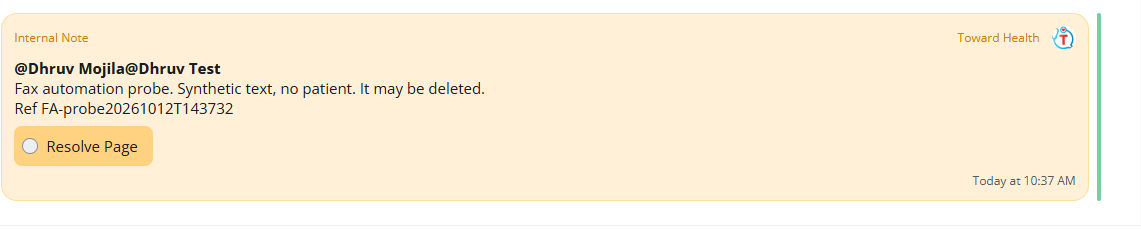
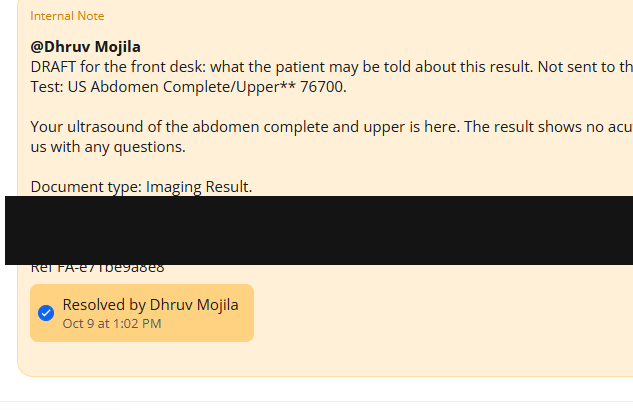
A note always has the same shape: what happened, in one line — then which fax it is, as the Elation inbox lists it
(Fax "pharmacy_sample.pdf" received 10/09/2026 9:47 am, 2 pages.), the document type, the Elation report, a link to
the report in Elation and a link to the fax — then What to do.
The daily routine
- Open the Fax notices thread in Spruce.
- Take the oldest unresolved page. Read its first line and its What to do line.
- Do it (the table below says exactly what, for each kind of note).
- Press Resolve Page. Next page.
- Once a day, glance at the Elation fax inbox itself. Anything still there is either waiting for the system (it retries on its own) or was left there for you — and in that case you have a page about it.
The system runs Monday to Friday, 8:00 to 18:00 Eastern. A fax takes a few minutes; a long one up to half an hour.
What each note means and what you do
| The note starts with… | What happened | What you do |
|---|---|---|
| A fax was filed with results left out: 3 of 24 lab results (13%) were not filed to the chart. | The report is on the patient's chart, but some values could not be coded. They are listed in the note on the report in Elation. | Open the report (the Report in Elation link), read its note, add the listed values by hand — see Adding the values the system could not file. Then Resolve Page. The question behind each of those values goes to the doctor's review queue on its own; you do nothing there. |
| A fax is held and nothing was filed: 22 of 24 lab results (92%) could not be filed. | Too many values could not be coded (or none at all), so the system filed nothing. The fax is still in the Elation inbox. | Answer the open questions in the doctor's review queue, then open the Fax link and press Process anyway; or file this fax by hand from the Elation inbox, the way you did before (trend the values, file the document). Then Resolve Page. |
| A fax was given up after 3 attempt(s): … Nothing was filed. | The system tried three times and could not read or file it (the note says why: the model did not answer, Elation did not accept it, or it hit an error every time). The fax is still in the inbox. | File it by hand from the Elation inbox. Resolve Page. |
| A fax was given up: Elation did not say whether the report was created; check the chart before releasing. Nothing was filed. | The report was sent to Elation and no answer came back in time. Elation may still have filed it. | First look at the patient's chart. If the report is there, open the Fax link and press Adopt from the chart (the fax then reads filed). If it is not there, press Process anyway and type CHART CHECKED — the report is sent again. Resolve Page. |
| A fax was not processed: … Nothing was filed. | The fax is not a lab, imaging or procedure report (a referral, a consult note, medical records, a form…), or it has more pages than the system takes, or the lab pages had no values, or its attachment is not fax pages or a PDF (an XML or text file the system cannot read). It is still in the inbox. | Handle it from the Elation inbox as before: file the document where it belongs. Resolve Page. |
| A fax was not processed: pages … read as Lab Result, but the model read no result on them; the table printed there is a form or a code list, not results. Nothing was filed. | The pages carry a table (an order form, a list of test codes) that is not a results table. The system does not file it and does not try again. It is still in the inbox. | Nothing, if it is an order form or a code table — delete the inbox item. If it is in fact a report, file it by hand from the Elation inbox, or open the Fax link and press Process anyway to have it read once more. Resolve Page. |
| A fax was not processed: it is a printout of a report the app already filed; its values are on the chart. Nothing was filed. | Somebody printed a report the system had filed and sent the printout to the fax inbox. The system recognises its own report and files nothing — the values are on the chart already. | Nothing: delete the inbox item. Only if the report is in fact missing from the chart, open the Fax link and press Process anyway. Resolve Page. |
| Part of a fax was not filed: … The rest is filed. | A mixed fax: the lab or imaging pages filed, the other pages did not. The fax stays in the inbox. | File the remaining pages by hand from the inbox. Resolve Page. |
| Part of a fax was not filed: pages … Elation did not say whether their report was created. The rest is filed. | The other pages filed; for these pages Elation never answered, so their report may or may not exist. | Look at the patient's chart for those pages. If their report is there, press Adopt from the chart on the fax page; if it is not, press Process anyway and type CHART CHECKED — only those pages are posted again. Resolve Page. |
| A document was filed to the patient's chart as Misc by the practice's setting … | A consult note, discharge summary, referral or the like of a type the practice listed under File as Misc on the Settings page. It is on the chart as a Misc PDF with a note saying what it reads as. | Open the report; if Misc is the wrong type, change it in Elation (two clicks). If the note says the triage chart, move it to the right chart first. Resolve Page. |
| … Pages N read as this practice's own (its name is printed on them), so their values were not trended. If they are another sender's report, open the fax and press Trend anyway. | The practice's own note, letter or form came back inside the fax (2026-10-27): the values printed on those pages were set aside, not trended, because they are on the chart already. The app decided by the practice's name printed on the page — the one rule it can get wrong. | Look at those pages. If they really are another sender's report, open the fax page and press Trend anyway: the fax runs again and those values trend. Otherwise nothing to do. Resolve Page. |
| An imaging report arrived by fax and is filed to the chart. … The report's words are not in this note: … so please read the PDF. | The report is filed, but its findings and impression could not be read into the note (2026-10-27): the pages were images without readable text, nothing was found under a heading, the words could not be matched to the scan, or the reader did not answer. | Read the report's PDF in Elation and tell the care team what it says. If the scan is unreadable, ask the sender to resend. Resolve Page. |
| An imaging report arrived by fax but could not be filed to the chart: … It is still in the Elation inbox. (or A procedure report …) | An X-ray, ultrasound, CT or MRI report, or an ECG, Holter, stress test or echo (an imaging report since 2026-10-26) — or a colonoscopy, endoscopy or operative report — that could not be filed (most often: the patient was not found). | File it by hand from the inbox and tell the care team. Resolve Page. |
| A prior authorization fax is in the Elation inbox. It is not filed: handle it from the inbox. | A prior-auth document. The system never files these. | Handle it from the inbox as before. Resolve Page. |
| A new chart was created in Elation from this fax's demographics — the name and date of birth as the fax printed them — because no chart matched. | No chart in Elation matched the patient, so the system made one from the fax (on the Tell the fax desk of every new chart switch, since 2026-10-26). The report is on that new chart. | Open the chart (the Chart in Elation link) and check the name and date of birth against the fax. If the patient already has a chart, merge the two (or move the report to the right chart) and delete the duplicate. Resolve Page. |
| A fax was filed to the triage chart: no chart in Elation matched the patient. Its results are on the triage chart, not the patient's. | The name on the fax matched no chart (or more than one), so the report was filed to the practice's triage chart, titled [UNMATCHED] with the patient's name. The values are there, not on the patient. |
Open the report (the Report in Elation link goes to the triage chart). Read the name and date of birth on the fax, then Actions → Refile to Other Patient Chart and pick the patient (make the chart first if the patient is new). The values then trend on the right chart. Resolve Page. |
| A fax was filed as 4 reports: - p1-3 Procedure Report → the patient's chart - p4-5 Lab Result → the triage chart (no chart matched — move it) … | One note for a fax of several reports (the Settings page's One note per fax, by page ranges, 2026-10-29) instead of one note per report: each report's pages, its type and where it went; a study inside a hospital record is a line under its record. | A report on the triage chart: move it to the patient's chart (Actions, Refile to Other Patient Chart). A new chart: verify it. The rest is filed. | | … The split at page 4 is uncertain: the pages were kept together — check the report in Elation. | The system could not tell whether page 4 begins another report, so it kept the pages together rather than cut a report in two (2026-10-29). | Open the report; if page 4 onwards is another report, file those pages by hand from the fax PDF and tell the operator (the problem form). |
On every page's status strip you will also see Long fax running (40 pages, 27 read, 35 min) while a fax above the long-fax page threshold runs in its own job; the fax explorer's top line says the same with its last progress.
Notes you will not get: a lab fax whose every value filed (it is on the chart and gone from the inbox), and an imaging report that filed to a matched chart (its note goes to the care coordinator in the patient's own thread).
What the links in a note do
Report in Elation opens the patient's report on the chart. Fax opens the system's own page for that fax (sign in to the fax app first); you rarely need it. Review queue is the doctor's — not yours.
Adding the values the system could not file
This is the old trending screen in Elation; the only difference is that the system tells you exactly which values to add. Every value it could not file is in the note on the report, one per line, like this:
WARNING: 2 analyte(s) NOT filed to grid (abstain/unmapped/invalid).
Not filed to grid:
- Ferritin=120 ng/mL ref=30-400 (page 2, IRON PANEL)
- Omega-3 Index=5.4 % (page 3, OMEGACHECK)
Each line is the test name as printed on the fax, its value, its unit, the reference range when the fax printed one, and where to find it (the page and the panel). Two other lines may be there: NOTE: … ordered but not performed or not reported (nothing to add — the fax has no value for them) and NOTE: … left uncoded by the practice's choice (the doctor decided these are never trended — nothing to add).
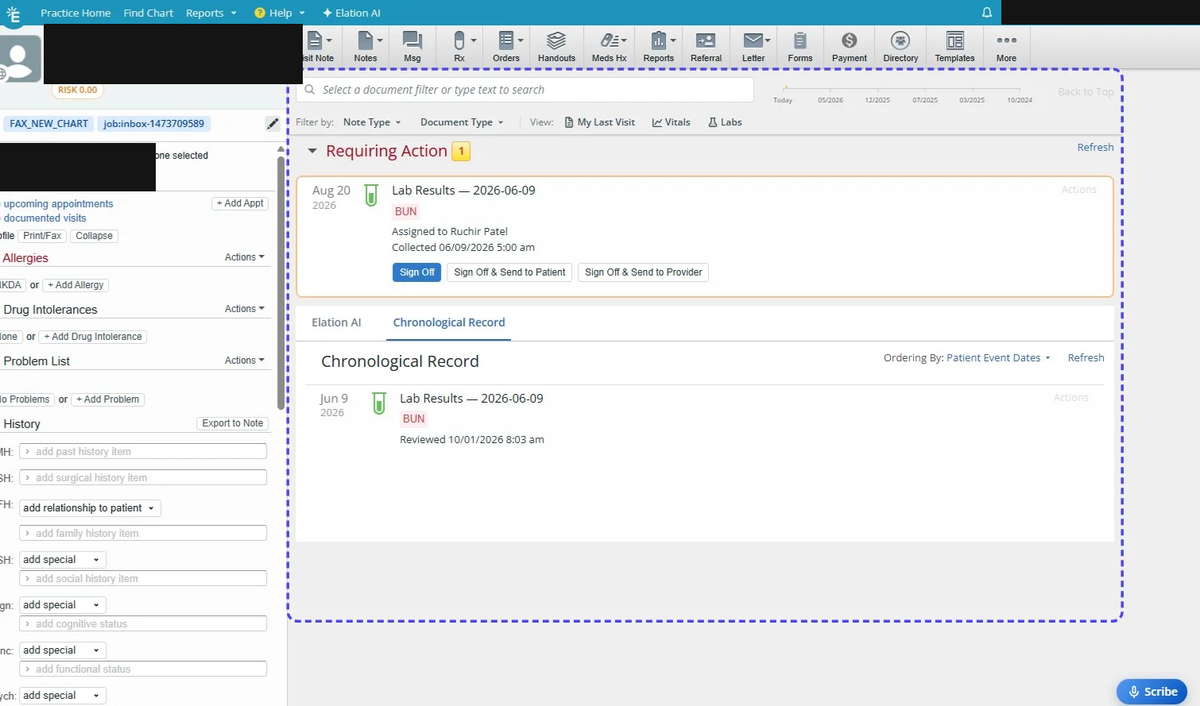
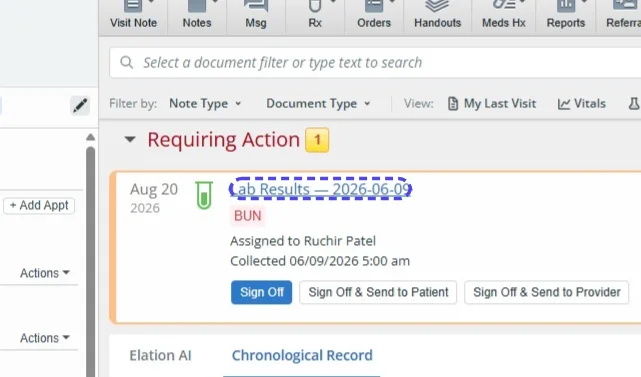
Step 1 — open the report. In the patient's chart, under Requiring Action, open the report named
Lab Results —
Step 2 — Actions → Add Lab Values for Trending.
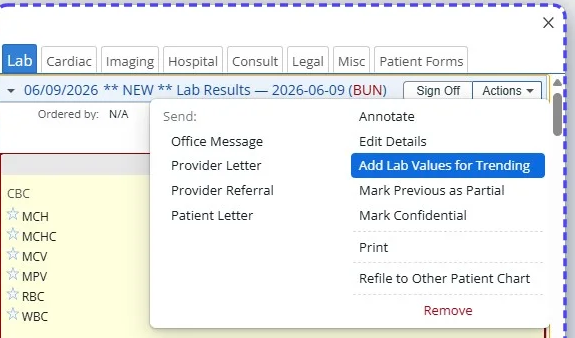
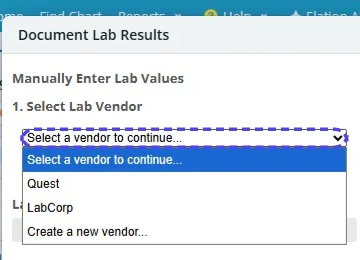
Step 3 — pick the lab vendor (Quest, LabCorp, or create the one on the fax).
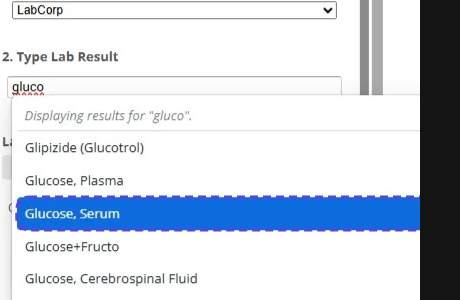
Step 4 — type the test name from the note's line and pick it from the list.
Step 5 — enter the value (and the range and unit when the fax prints them), then Save Entry. Repeat steps 4 and 5 for every line of the note.
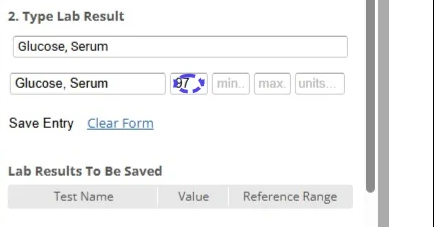
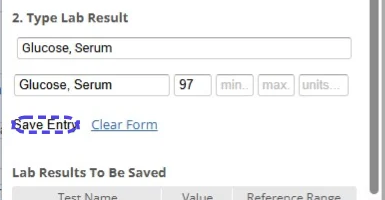
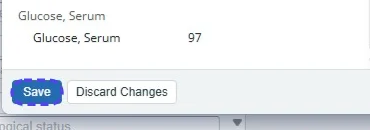
Step 6 — Save at the bottom when every line is in. Then back to Spruce: Resolve Page.
The question behind a value you added
The system did not file that value because its test name could mean more than one code. It has already asked the doctor about it in the review queue. Once the doctor answers, the next fax with that test files on its own — you will not be adding it by hand twice.
Finding the fax in the Elation inbox
The Elation inbox list shows no id — only the item's name, the page count and Received at. So every note tells
you the same three things: Fax "pharmacy_sample.pdf" received 10/09/2026 9:47 am, 2 pages. — the name exactly
as the inbox shows it, the received time as Elation prints it (clinic time) and the page count. In the Elation inbox,
press Ctrl+F and type the name from the note; or look down the list for that time and that page count.
- The system takes faxes oldest first, and a note arrives minutes after its fax was processed — so when the note comes while new faxes keep arriving, the fax it is about is further down the list, not at the top.
- Two faxes received the same minute with the same page count: open the Fax link in the note. The fax app's page for it shows the document type and the pages the system read; compare with the two in Elation.
- Faxes the system filed completely are gone from the list on their own. What stays is either waiting for the system (it retries by itself) or yours — and a page about it is in your thread.
When something the system did is wrong
Every Spruce note about a fax ends with Something wrong with this fax? (once the operator has switched it on). Open it: a one-page form opens with the fax already named by its id — nothing to sign in to. Pick what is wrong from the list, add a line if you like, type your name, press Report it — twenty seconds, and the operator has everything needed to fix it, including the original fax (the system keeps it for 30 days). If the page asks for the form password, type it once; your browser remembers it for a month. The link itself lasts 30 days; after that, or for a fax without a note, press Something is wrong on the fax's own page in the fax app (that one needs the fax app's sign-in). No patient names in the form — the fax is known by its id.
Do it when:
- a report is on the wrong patient's chart (the name on the fax is not the chart's);
- a value on the chart does not match the fax, or is missing;
- a value is on the chart under a wrong test (a wrong code) — the doctor fixes codes in the fax app, not in Elation;
- the document was filed as the wrong kind (a hospital's report filed as a lab result, an imaging report as a lab);
- one fax held several reports and they were filed as one;
- the same fax was filed twice, or should not have been filed at all;
- anything else — pick Something else and say it in a line.
Then fix the chart as you see fit; the form is there so the operator learns what you fixed and why, and the system is changed so it does not happen again. Never print a report from Elation and send it back to the fax inbox: the system recognises its own printout, files nothing and pages you — the values are on the chart already.
Tell the operator (Dhruv) or Dr Tro directly, the same day, when pages stop coming for a day although faxes keep arriving. Do not correct the system from inside Elation: editing a value or a code there changes that chart only and teaches the system nothing.
Good to know
- Nothing about a patient is in Spruce notes except what the practice itself put there: a note about a lab fax carries counts and links, never values or names. An imaging note to the care team carries the report's findings — that is why those notes live in the patient's own thread.
- You can look a fax up in the fax app (Fax explorer) by the Elation report id, but you do not need to.
- The original fax is kept for 30 days — Download original on the fax's page in the fax app.
- Pages are not a to-do list for the doctor. The doctor has a separate, weekly job: answering the test-name questions (doctor's guide).
- Keep resolving pages as they come; an old unresolved page is still a fax waiting for you.